

Getting Started
This guide builds a small Character.State.Stunned workflow. By the end, a GameObject can receive,
report, and remove the tag at runtime.
1. Create the tag
Section titled “1. Create the tag”Open the Gameplay Tags settings page, then:
- Create the root tag
Character. - Select
Characterand create the childState. - Select
Character.Stateand create the childStunned. - Give the final tag a concise project-specific description.
Character.State.Stunned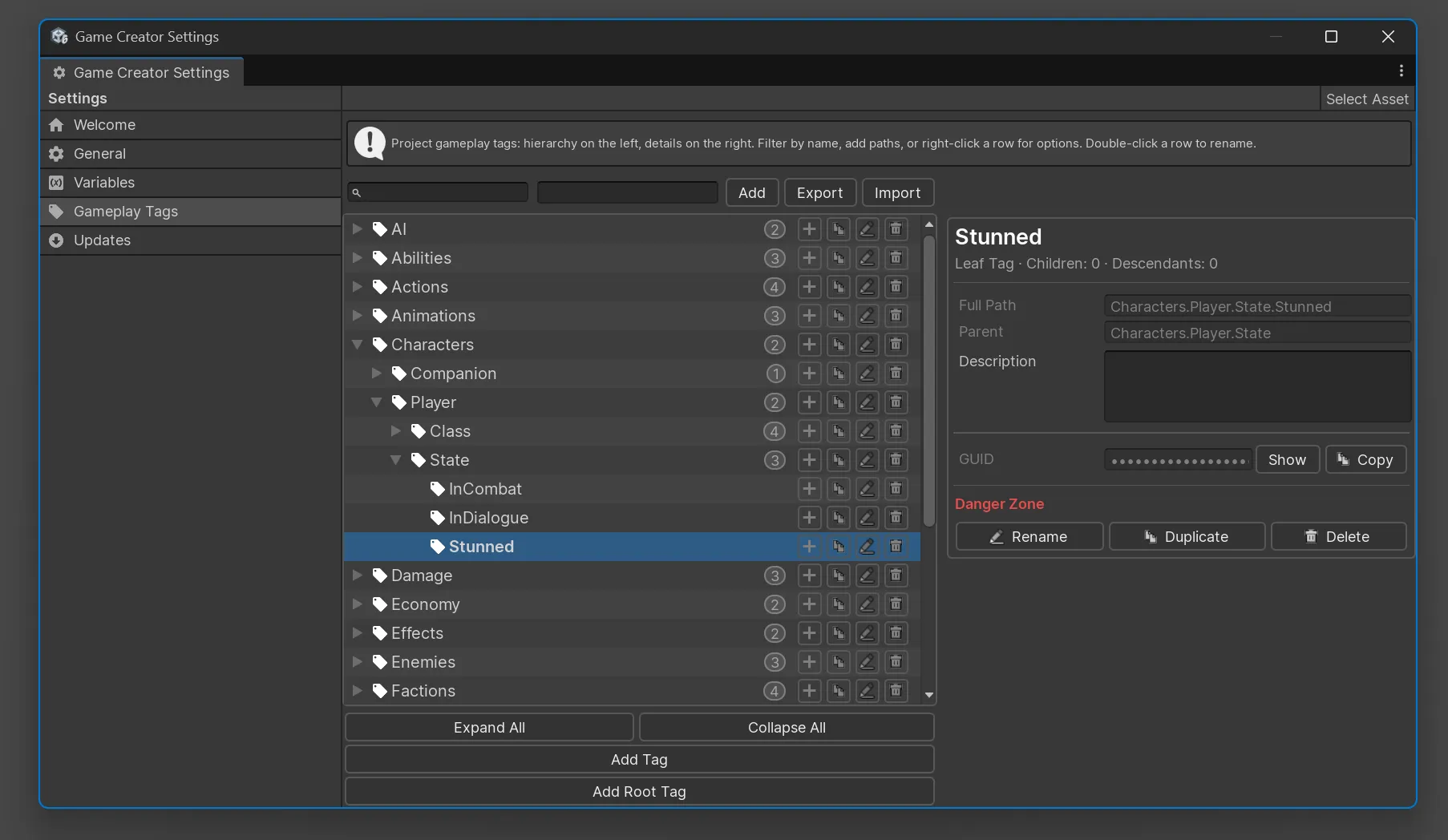
The hierarchy provides both a specific tag and broader query categories:
| Tag | Intended scope |
|---|---|
Character |
Character-related classifications. |
Character.State |
Any character gameplay state. |
Character.State.Stunned |
The specific stunned state. |
2. Add a GameplayTagComponent
Section titled “2. Add a GameplayTagComponent”- Select a player, enemy, or test GameObject.
- Add Game Creator > Gameplay Tags > Gameplay Tag Component.
- Add
Character.State.Stunnedwith the tag picker.
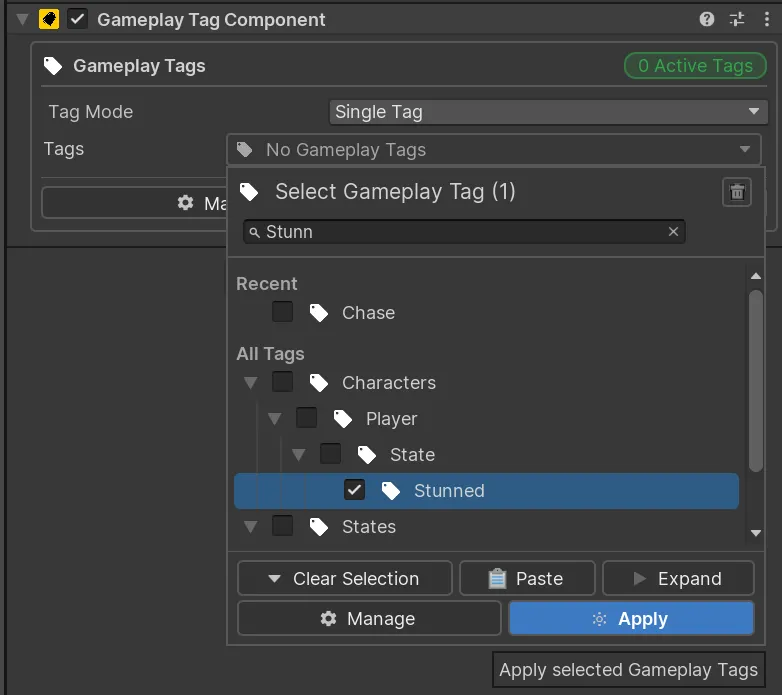
GameplayTagComponent makes the GameObject available to tag-aware Game Creator Actions,
Conditions, Events, and runtime scripts.
3. Check the exact tag
Section titled “3. Check the exact tag”- Add a Game Creator Condition.
- Choose Gameplay Tags > Game Object Has Gameplay Tag.
- Select the GameObject to inspect.
- Select
Character.State.Stunned. - Choose Exact matching.
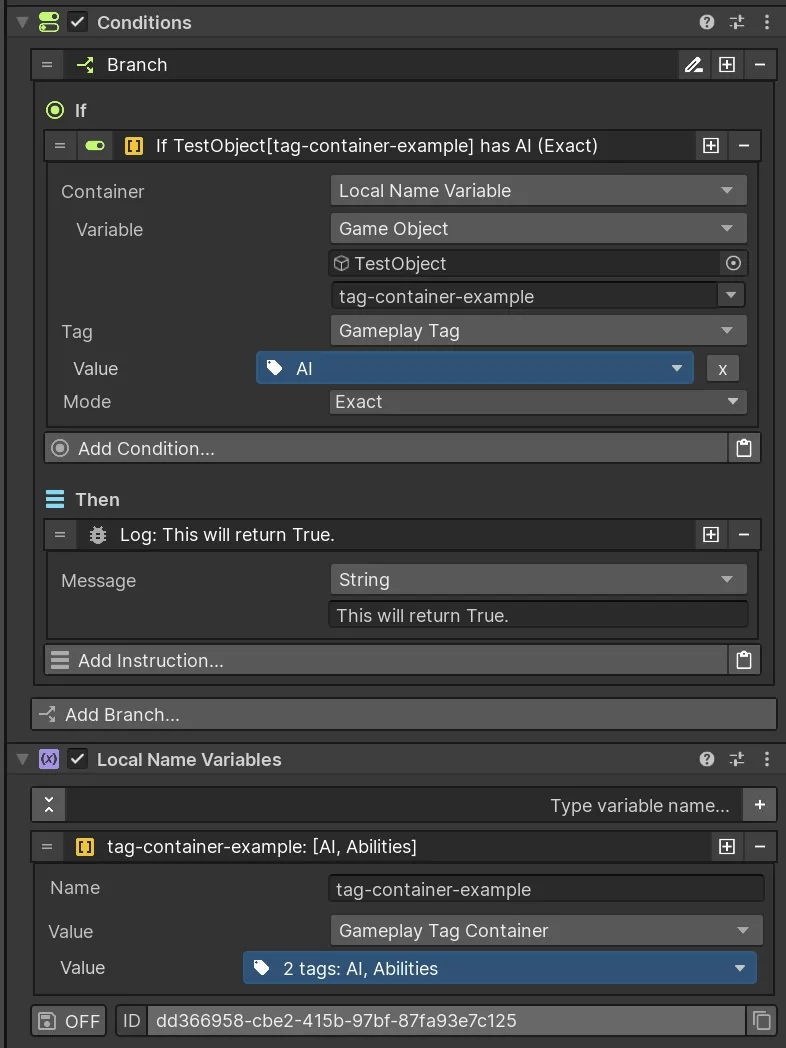
The Condition is true only when the object owns that complete tag path.
4. Query a parent category
Section titled “4. Query a parent category”Choose Include Children when a broad query should match a more specific owned tag:
Owned tag: Character.State.StunnedQuery: Character.StateMode: Include ChildrenResult: true5. Add and remove the state at runtime
Section titled “5. Add and remove the state at runtime”- Run Add Gameplay Tag when the stun begins.
- Check the same tag before movement, attack, or interaction logic.
- Run Remove Gameplay Tag when the stun ends.
Next steps
Section titled “Next steps”- Learn the hierarchy and matching rules in Core Concepts.
- Organize the project repository with the Tag Manager.
- Review the available Actions and Conditions.