

Register and Select
Asset References is built around quick registration and a compact, type-filtered selector.
Inspector add button
Section titled “Inspector add button”Select a project asset and click Add Asset Reference in the Inspector header. The popup lets you
confirm the generated ID and optional metadata before the entry is written.
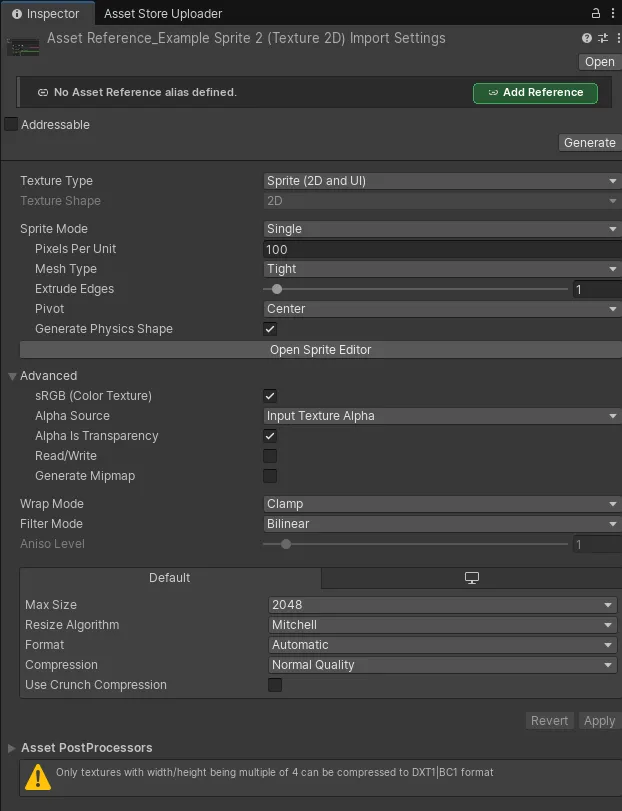
Project context menus
Section titled “Project context menus”Use these Project-window menu paths:
Asset References > Add ReferenceAsset References > Bulk Generate ReferencesSingle-asset creation opens the naming popup. Bulk generation opens a preview and does not write entries until the operation is confirmed.
Selector dropdown
Section titled “Selector dropdown”Supported Game Creator properties expose an Asset References/Asset Reference source. The selector
filters by expected type, so an AudioClip property lists AudioClip entries rather than every
registered asset.
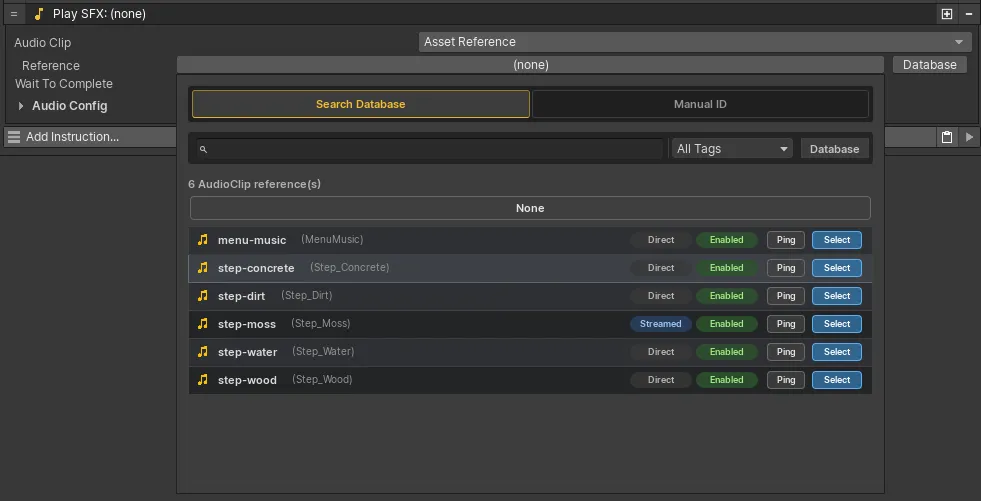
Search and tag filters live in the popup while the normal inspector field remains compact.
Manual ID
Section titled “Manual ID”Use Manual ID when a field should resolve a literal Reference ID or a dynamic Game Creator string
property. This supports script-driven or variable-driven workflows where the database entry cannot
be chosen statically.
Database-selected IDs remain string-backed so namespace-like IDs and slash segments are preserved. Dynamic Manual ID values are valid runtime inputs, but usage scanning cannot treat their resolved value as a statically renameable database ID.
Asset Reference variables
Section titled “Asset Reference variables”For a selector whose ID changes at runtime:
- Create a Local Name Variables component or Global Name Variables asset.
- Add an
Asset Referencevariable. - Select its initial Reference ID.
- Update it with
Set Local Asset ReferenceorSet Global Asset Reference. - Choose the variable-backed Asset Reference source where the asset is needed.
The variable stores an ID, not a loaded Unity object. See Properties and Variables for the integration boundary.