Getting Started
This walkthrough covers the shortest setup from asset creation to playback.
1. Create a Montage asset
Section titled “1. Create a Montage asset”In the Project window, choose Create > Game Creator > Characters > Animation Montage. Give the
asset a descriptive name such as Interact_Potion.
2. Add the Player component
Section titled “2. Add the Player component”Select the target Character GameObject and add the Animation Montage Player component. This component interprets the timeline and controls playback.
3. Choose a playback mode
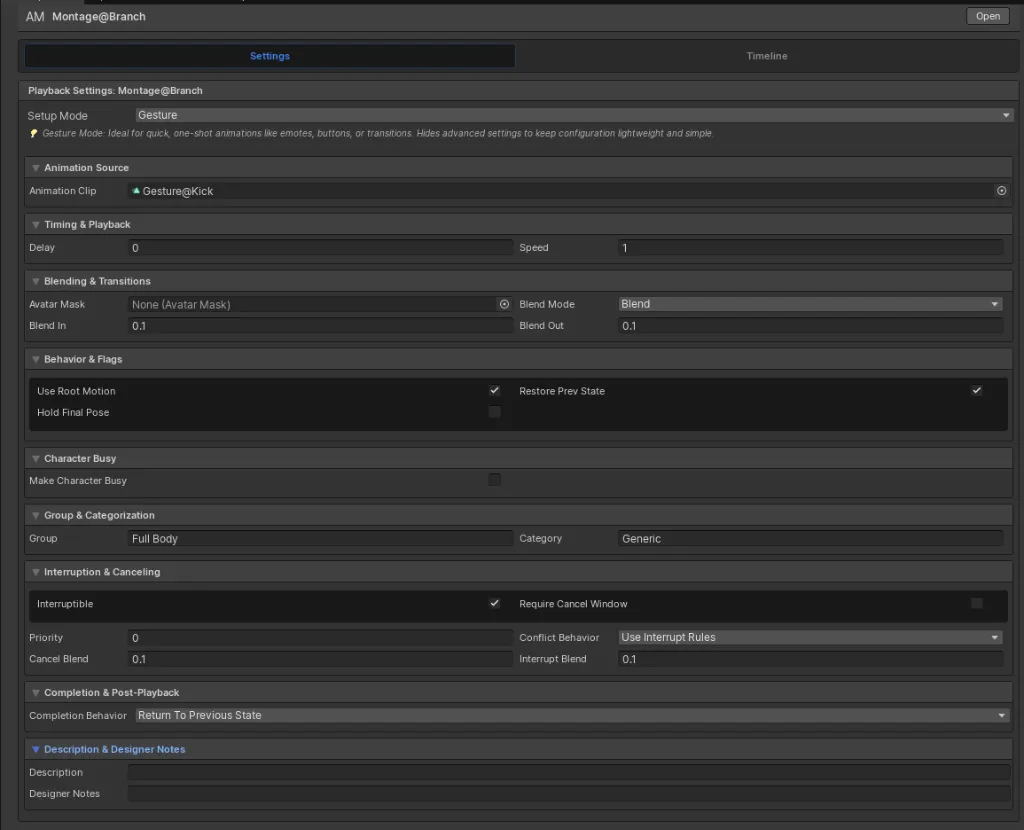
Section titled “3. Choose a playback mode”Open the Montage asset and select a setup mode:
- Gesture for a temporary one-shot that blends over active locomotion.
- State for a sustained stance or loop that remains active until it exits.
Assign the animation clip, then review timing, speed, blending, root motion, interruption, and completion settings.
4. Author timeline events
Section titled “4. Author timeline events”Open the Timeline tab and add only the elements the interaction needs:
- a Notify for a single point event;
- a Range for enter and exit logic;
- a Section for a named playback segment;
- a Branch for a conditional decision; or
- a Transform track for spatial changes.
See Timeline Authoring for each element.
5. Play the montage
Section titled “5. Play the montage”Trigger the asset with the Game Creator 2 Play Montage Action. Select the target Character and Montage asset, then configure any speed or parameter overrides needed by the interaction.
Editor preferences
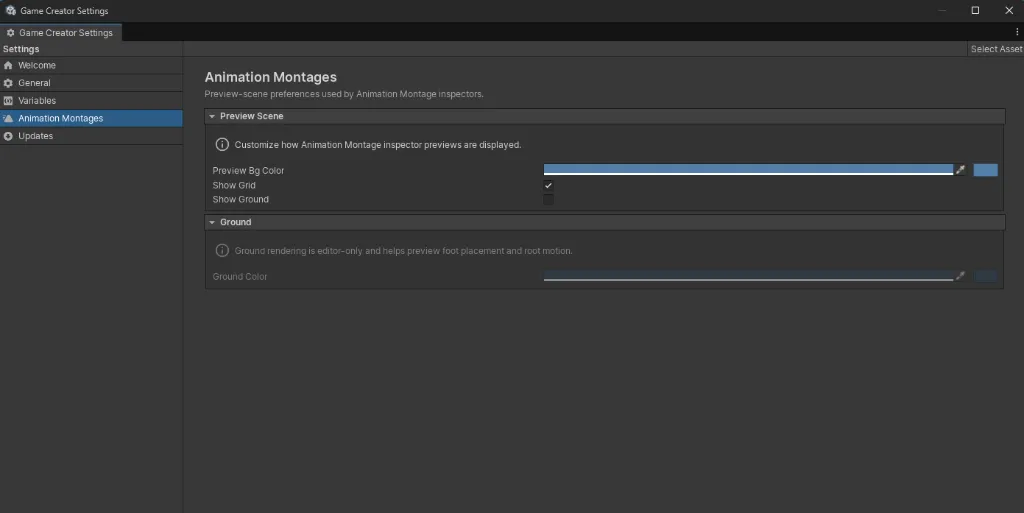
Section titled “Editor preferences”The Animation Montages area in Game Creator Settings controls the preview background, grid, and ground display used by the asset inspector.
Next steps
Section titled “Next steps”- Compare Gesture and State playback.
- Learn the Montage asset and Player component.
- Build a potion interaction or chest workflow.