

Timeline Authoring
The Montage timeline uses normalized positions from 0% to 100%. Add only the elements required
by an interaction, then preview the asset after changing clips or playback speed.
Notifies
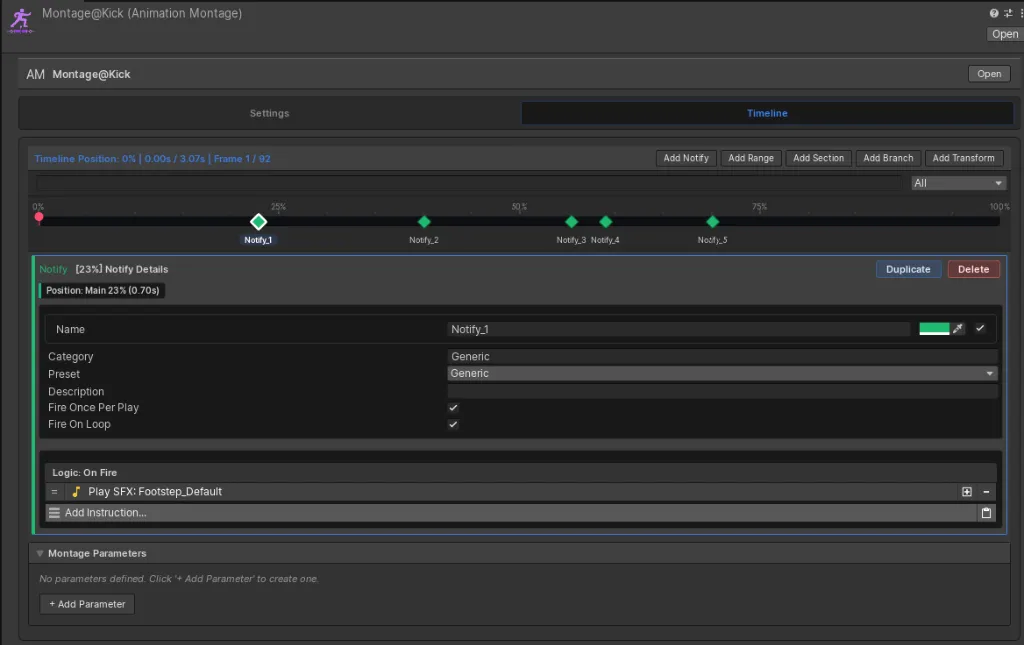
Section titled “Notifies”A Notify is a point event. It fires when the playhead crosses its configured percentage.
Use Notifies for one-time cues such as audio, visual effects, camera feedback, or a short Game
Creator 2 Instruction List. The corresponding C# callback is OnNotificationFired.
Windows
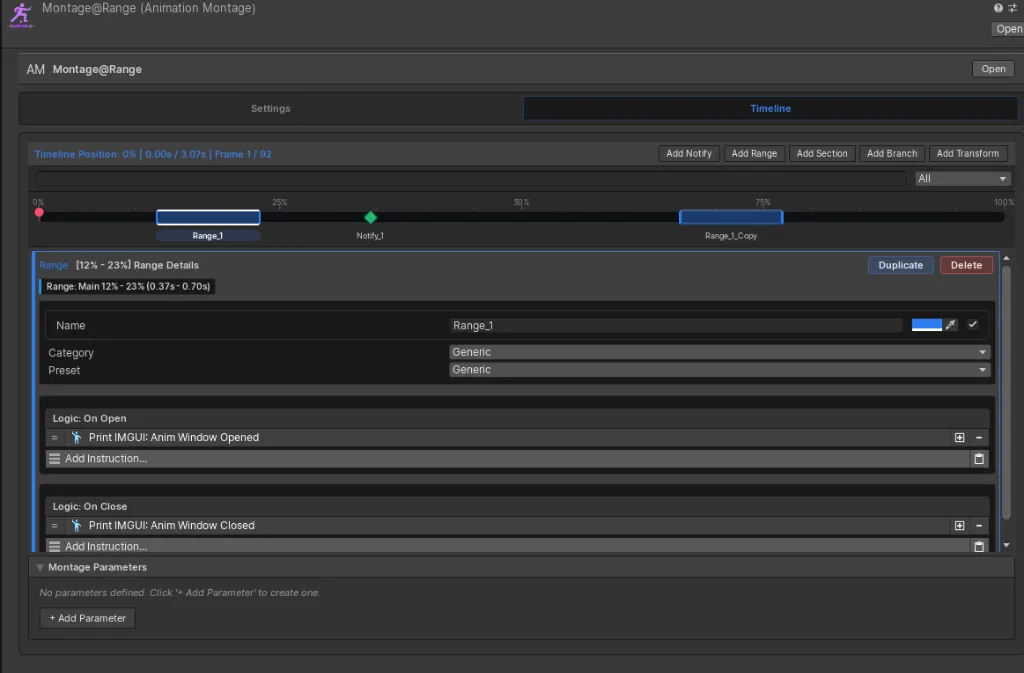
Section titled “Windows”A Window covers a range such as 20% to 55%. It can run separate logic when the playhead enters
and exits the range.
Use Windows for:
- interaction or status-effect intervals;
- character alignment;
- input buffers;
- invincibility periods; and
- cancel opportunities.
Query a Window through player.IsWindowActive("ID"), or subscribe to its open and close callbacks.
Cancel windows
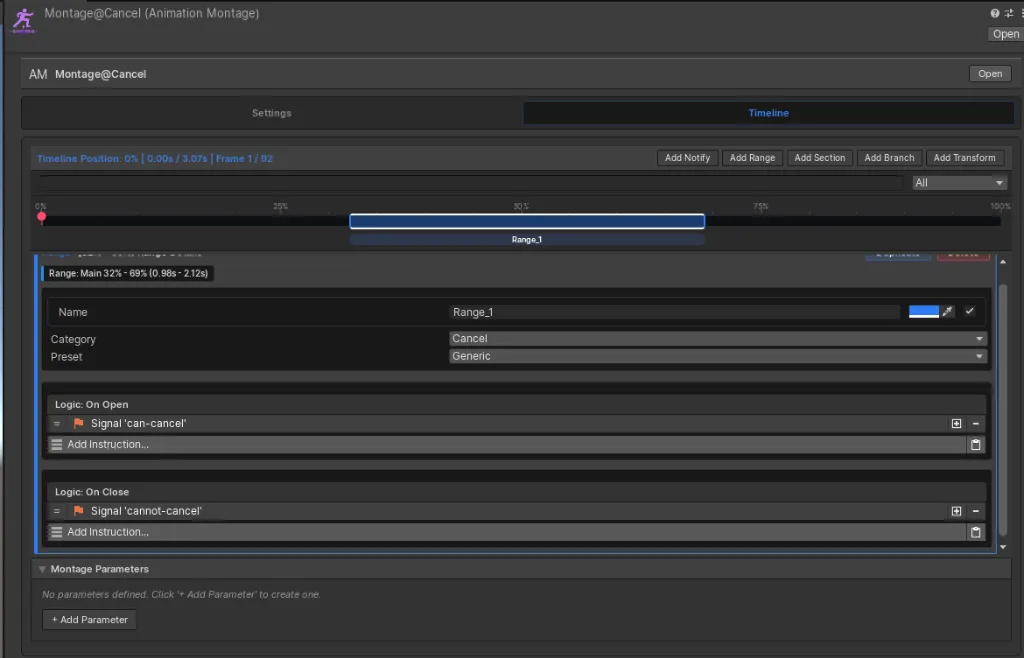
Section titled “Cancel windows”A Range with the Cancel category can signal whether the current montage may be interrupted. Combine it with Require Cancel Window in the Montage interruption settings.
Sections
Section titled “Sections”Sections divide playback into named areas such as Begin, Middle, and End. The source shows
settings for looping, automatically continuing, choosing a next section, and stopping at the end.
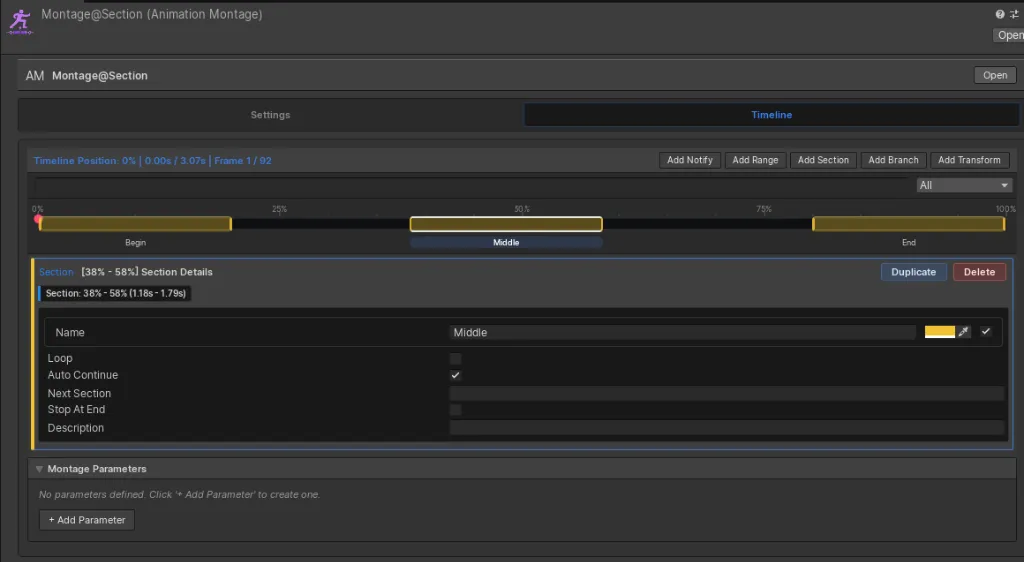
Use sections for multi-stage interactions, loops, or recovery phases. Call
JumpToSection(string name) to move the playhead to a named section.
Branches
Section titled “Branches”A Branch evaluates Game Creator 2 Conditions at a point on the timeline. It provides separate success and failure outcomes, such as jumping to another section or stopping playback.
Use branches when the path should depend on input or runtime state. Keep the condition focused so the result remains easy to test.
Transform tracks
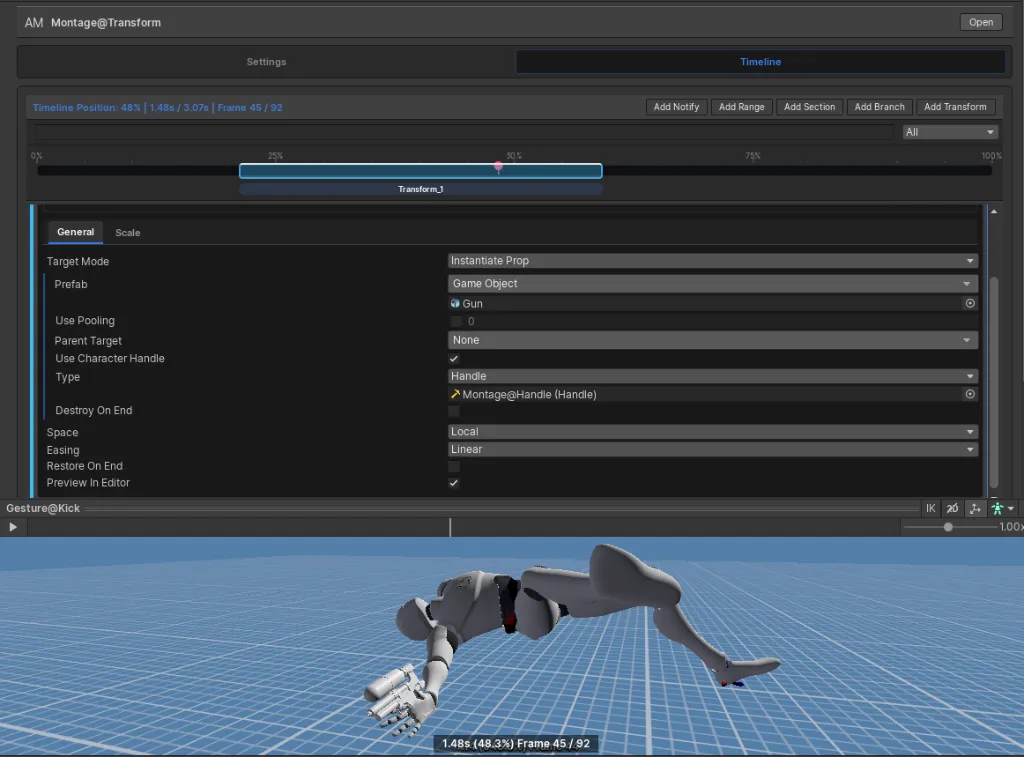
Section titled “Transform tracks”A Transform track changes a target’s position, rotation, or scale over a range. Targets can include character roots, bone handles, existing objects, and instantiated props, with easing and optional restoration or cleanup at the end.
Parameters
Section titled “Parameters”Montage parameters allow an asset to receive runtime values rather than storing a fixed target. Continue with Variables and Integration to configure overrides.